What you get
Your Perfect Year is five things working together. Every tool in your HQ belongs to one of them.
Brand new? Start here
Your first week in HQ, in order. Each step takes minutes, and the dashboard walks you through it. Prefer to watch? The whole dashboard in 90 seconds:
- Confirm your books. Open Fix my setup (header) — check every book has its real title and release date. Add anything we missed with Add a book.
- Connect your real KDP sales. Money tab, one click, once — then your true numbers sync every hour.
- Set up your reader magnet and landing page so every reader has a door into your list.
- Switch on Swap Admin by adding Perfect Year as an assistant inside Bookclicker (Account → Profile → Manage Virtual Assistants → Add Assistant) — then we draft your promo emails for you to send, and confirm each one on Bookclicker.
- Open Demand Radar (Market tab) and press one Autopilot play before each release.
Already set up? Ask the Strategist (bottom-right in your HQ) “what should I focus on?” and it answers from your live numbers. And every card in the dashboard has a small — hover it for what that card does and how to use it.
Common questions
Tap a question to open it.
Where do I change my writing pace? A pace-risk warning told me to.
Open the My pen tab (top strip) and look for the How I work card. Two numbers live there, both yours to correct any time: your honest pace (words in a normal writing week) and your draft lead (how many days before a KDP upload you like the draft finished).
Your honest pace is what every pace warning and AT-RISK badge on your Production board measures against — if it is set too low, you will get alarms you do not need; too high, and real risk hides. It is not aspirational, just true. A pace-risk email links straight to this card.
Some checklist jobs need a tool, not a tick — where is it?
Under Mission Control and the checklist there is a row called From this plan — straight to the tool. Three jobs on your checklist need a tool rather than a tick, and it hands you the right one for each so you are never hunting.
Make my mood & trope graphics → opens BookAdPack in a new tab. BookAdPack is a separate product — you sign in there and buy its credits there, and your Perfect Year subscription does not cover it. Line up my release-week swaps → is swap admin, which is included in your Perfect Year subscription: no add-on, no extra fee.
What is the Launch Checklist, and do my ticks save?
Your Launch Checklist — every phase walks a release through five phases: PRE, BUILD, HEAT, COUNTDOWN and BLITZ. Every task for every phase is on the page — nothing is folded away.
Your ticks save across devices, so you can start on your laptop and finish on your phone. Most steps also carry a Power Play that will do that step for you.
What is the Reader magnets card, and where do I find it?
On your Launch tab, each pen name has a Reader magnets — free-book signups card. It lists your free-book landing pages for that pen and how many readers each one has captured into your list, with a link to each page.
It is done for you: we host the file, capture the email, and add the reader to that pen’s own list. If you haven’t got one yet, the card offers Create your free book yourself →.
How do I get my books in without typing them all out?
Open Your books on any pen name and tap Find my books. We search Amazon for everything published under that pen name and show you the list with covers — you just tick the ones that are yours. It takes about a minute.
If we can’t match the name, paste your Amazon author page instead, or add a single book by its ASIN.
Can the Strategist make changes for me, and how do I know nothing happens without me?
Yes — four things, always with your confirmation. In the chat (bottom-right) ask in plain words: add a note to a day ('Add a note on 12 September: cover reveal'), filter the calendar ('Show only releases and deadlines for September'), pause or resume a pen name's newsletter ('Pause the newsletter for Lucy for now'), or move a launch ('Move The Boathouse Promise to 2 October').
It never acts on its own. It replies with a card that says exactly what will happen and a Confirm button — tap Not now and nothing changes. Notes, filters and the newsletter switch take effect when you confirm. For a launch move it opens the Move tool on your Production board with the new date filled in, so you read what changes and what it costs, then tap Check & apply yourself — a locked launch stays locked. If it's missing a detail (which book, which date), it asks rather than guesses. Every confirmed action is recorded against your account.
Can I filter the calendar, and what does the amber on a day mean?
Filters: under the month name on your Plan-tab calendar you'll find chips — tap Releases, Deadlines, Promo sends, Your notes and so on to show only those items; tap again to switch one off, or Clear filters. If you run more than one pen name, tap All pens together to see every pen on one grid (a chip appears for each pen, so you can narrow to one). Your choices are remembered.
The amber : a heads-up day. It appears when two sends are going to the same readers on one day (for example a promo newsletter and your Loop newsletter), or when two of your pen names release in the same week — your launch attention gets split. Tap the day and the reason is written at the top, so you can decide whether to move one. It only ever warns; it never moves anything for you.
How do I add my own dates to the calendar — and where do I see what's next?
What's next: look for the Next up line — on your Today screen just under your daily deck, and at the top of your calendar on the Plan tab. It names the very next dated thing for each pen name (a deadline, launch phase, release, promo send, Loop newsletter or one of your notes) and how many days away it is. If it says a writing stretch, nothing is dated yet.
Your own notes: on the Plan tab's calendar, tap any day, then + Add a note for this day. Type a few words (up to 300 characters) and save. If you run more than one pen name, tick All my pen names for personal days like holidays. Notes show on that day with a teal 'Your note' pill; tap remove to take one off. Only you see them.
Is there one calendar that shows everything happening for my pen names?
Yes — open the Plan tab and scroll to Your calendar — every day, everything, just under your year at a glance. Use ‹ › to move months and tap any day to open it.
Each day lists what's planned and what happened: releases, draft/edit/upload deadlines, launch phases (build, heat-up, countdown, KDP files due), quarterly reviews, your weekly rhythm, promo newsletter send dates, Bookclicker swap confirmations and promo slots, preorders, detected promo reschedules, and your Loop newsletters and posts — both the ones already drafted and the next one we have planned. Everything is colour-coded by pen name; tap open → on an item to jump to the tab that owns it.
It only shows what's really in your plan and your connected accounts — a quiet day is a quiet day.
When does my newsletter go out — and can I change it?
Open your HQ's Loop tab and scroll to Your setup → Your schedule. It shows when your next issue is drafted and when it goes out — in your own time zone. Until you choose, we suggest our usual rhythm (Saturdays 9:00 AM UTC).
To change it, use Pick your day and time: how often (weekly, every two weeks, or once a month), the day, the time, and your time zone — then tap Save my schedule. Your new dates appear within a few minutes. If you pick every-two-weeks, you also choose the date of your first issue so we know which week is yours.
Every issue still lands in your Loop inbox first — nothing goes out without your yes.
How do I open my HQ?
Your dashboard opens through the personal link in your welcome email — search your inbox for “Perfect Year” and click Open your Perfect Year HQ. Lost the link? Get a fresh one at perfectyearhq.com/recover.
How do I add or rename a book?
Open Fix my setup (header). There you can add a new book to any pen, rename a book, set its series, target word count, and release date. Renaming one book never touches the others.
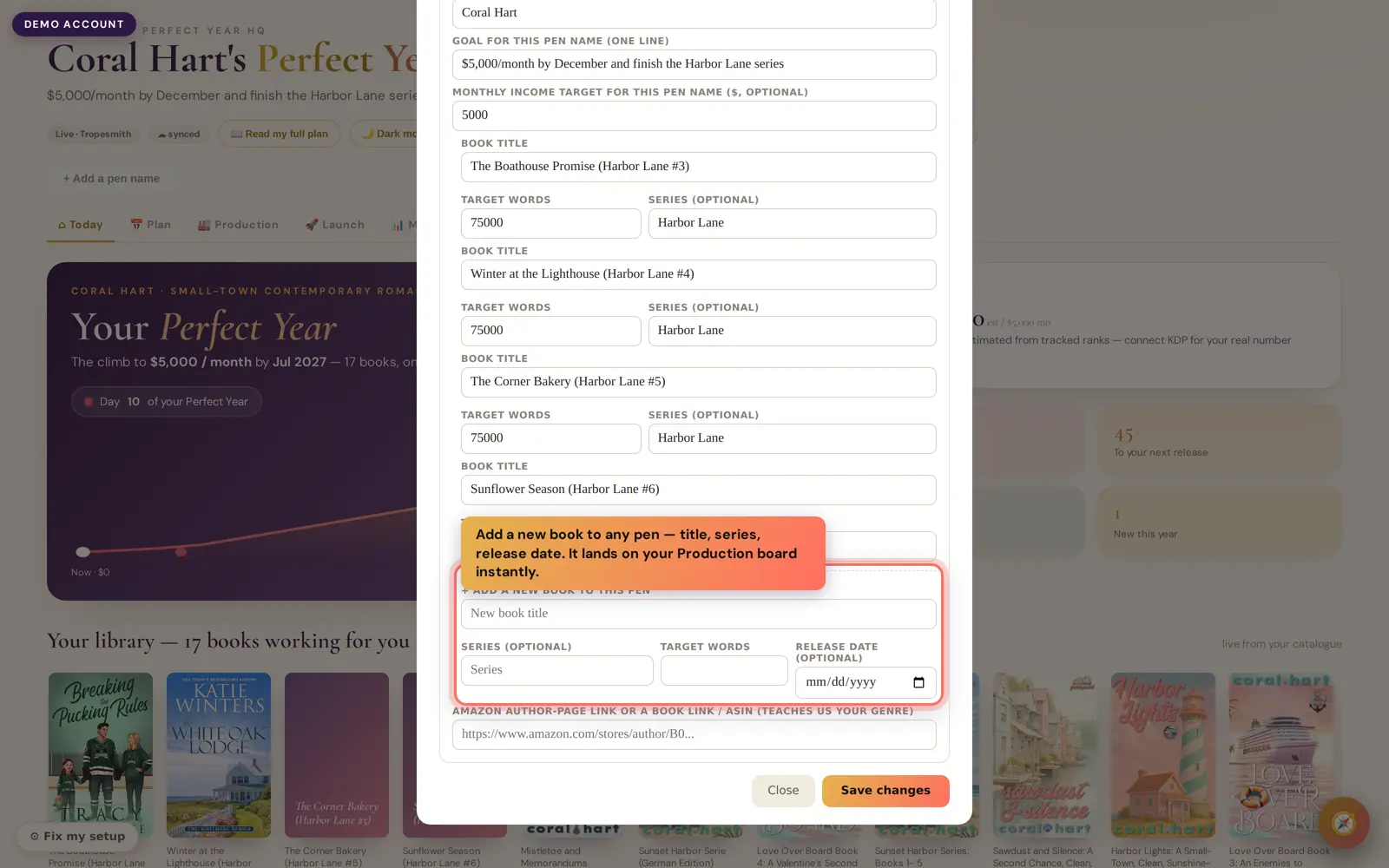
Fix my setup — the Add-a-new-book fields, right on the panel (demo account shown)
How do I set up a preorder in my plan?
Add the book in Fix my setup (title, series, real release date) — it lands on your Production board. When the preorder page goes up on Amazon, paste the book’s ASIN on the Production board and click its stage to preorder — rank, sales and review tracking start that second, and the launch countdown runs to your release date. A one-month runway works fine; the plan fits your dates.
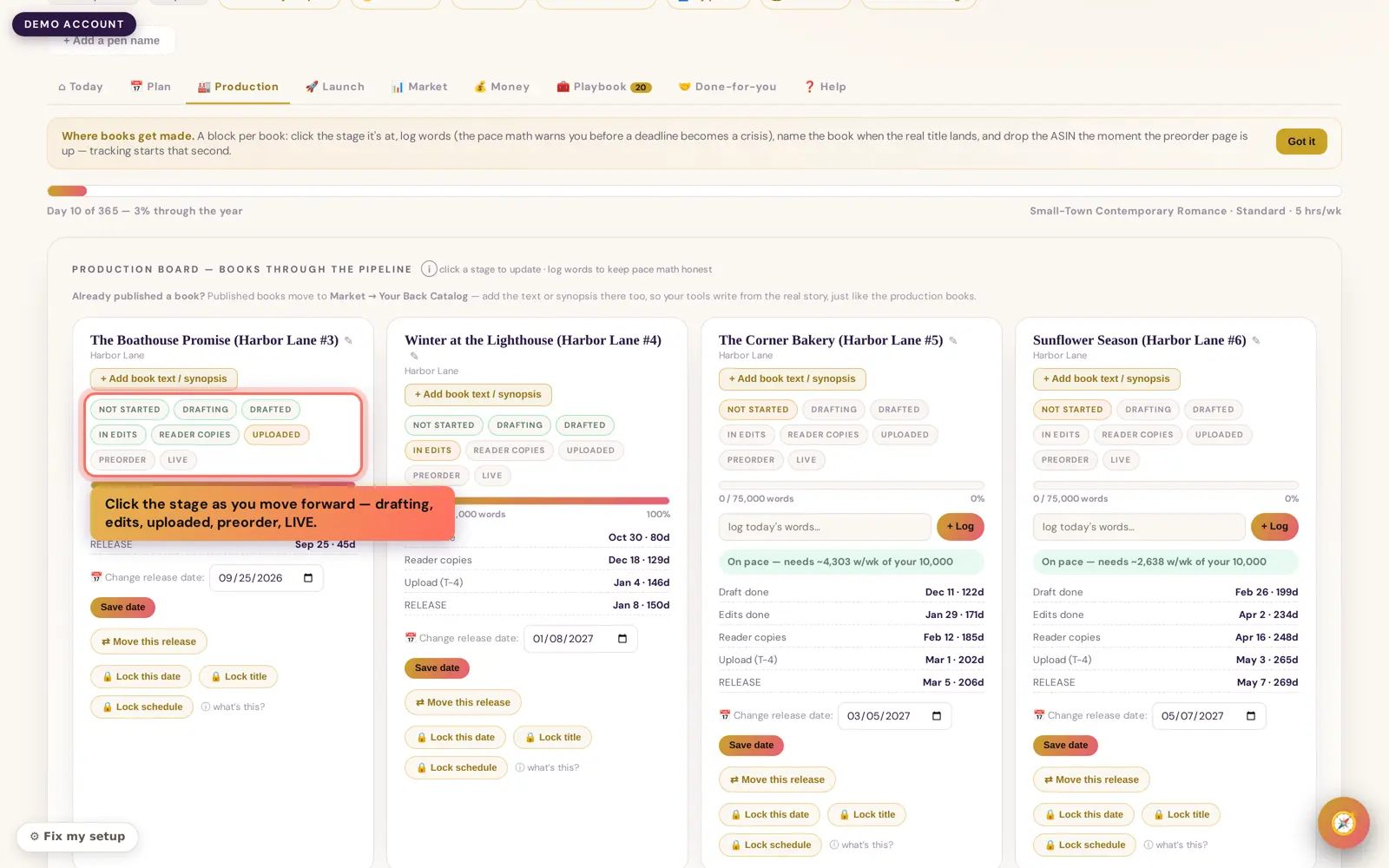
The Production board — click the stage chip, paste the ASIN when the preorder page is up (demo account shown)
How do I change a release date?
Two ways: on the Plan calendar click Move on the launch’s month, or on the Production board use the Change release date field on the book itself. We re-fit the rest of your plan around the new date automatically. (If the launch is locked, unlock it first.)
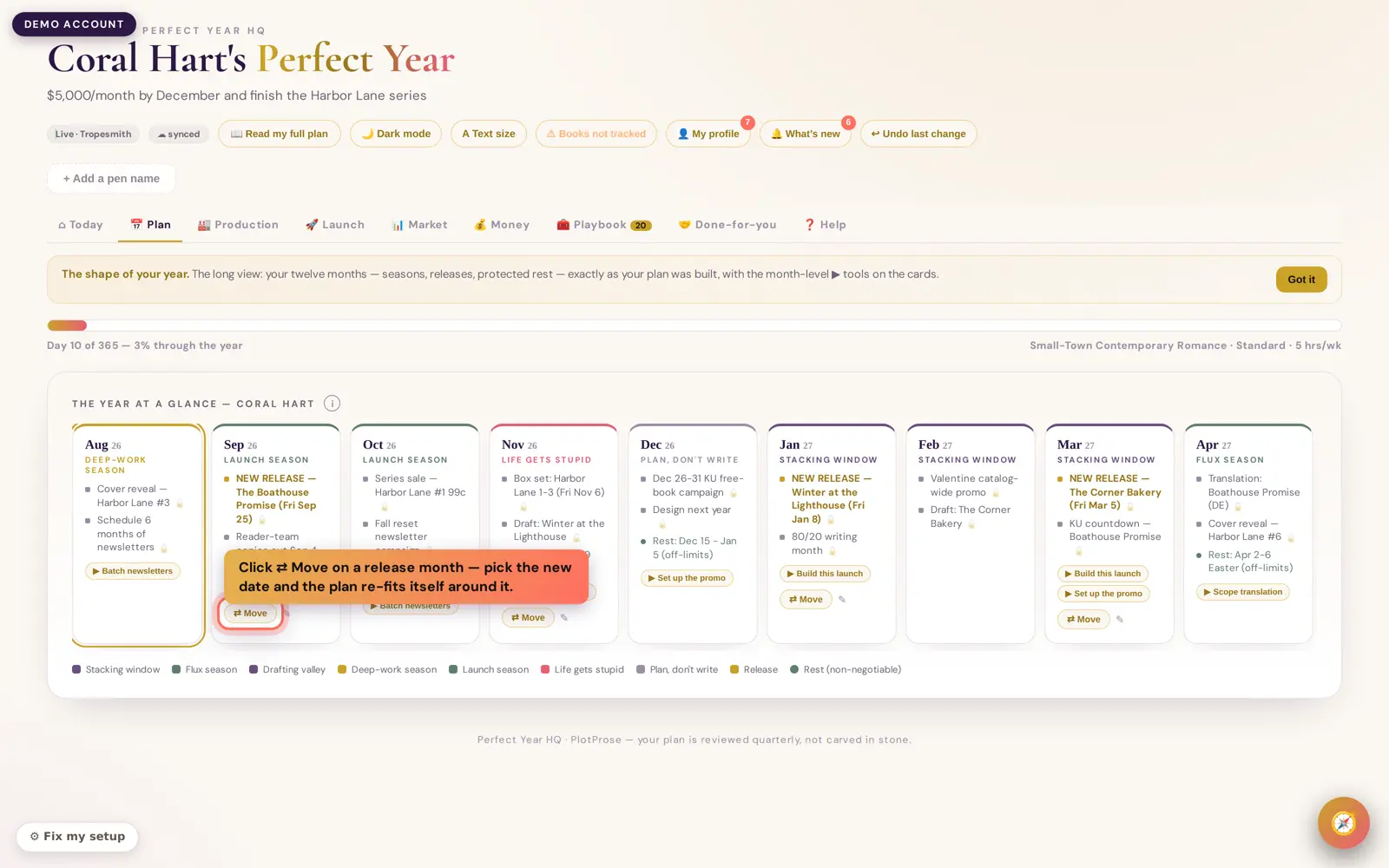
The Plan calendar — every release month has its Move control (demo account shown)
How do I stop a re-plan from moving my launch date?
Lock it. On your Production board (or the launch’s month on the Plan calendar), click Lock this date. From then on nothing — a re-plan, the auto-scheduler, or a stray edit — can move it. Click Unlock when you want to change it. More on Lock It Down →
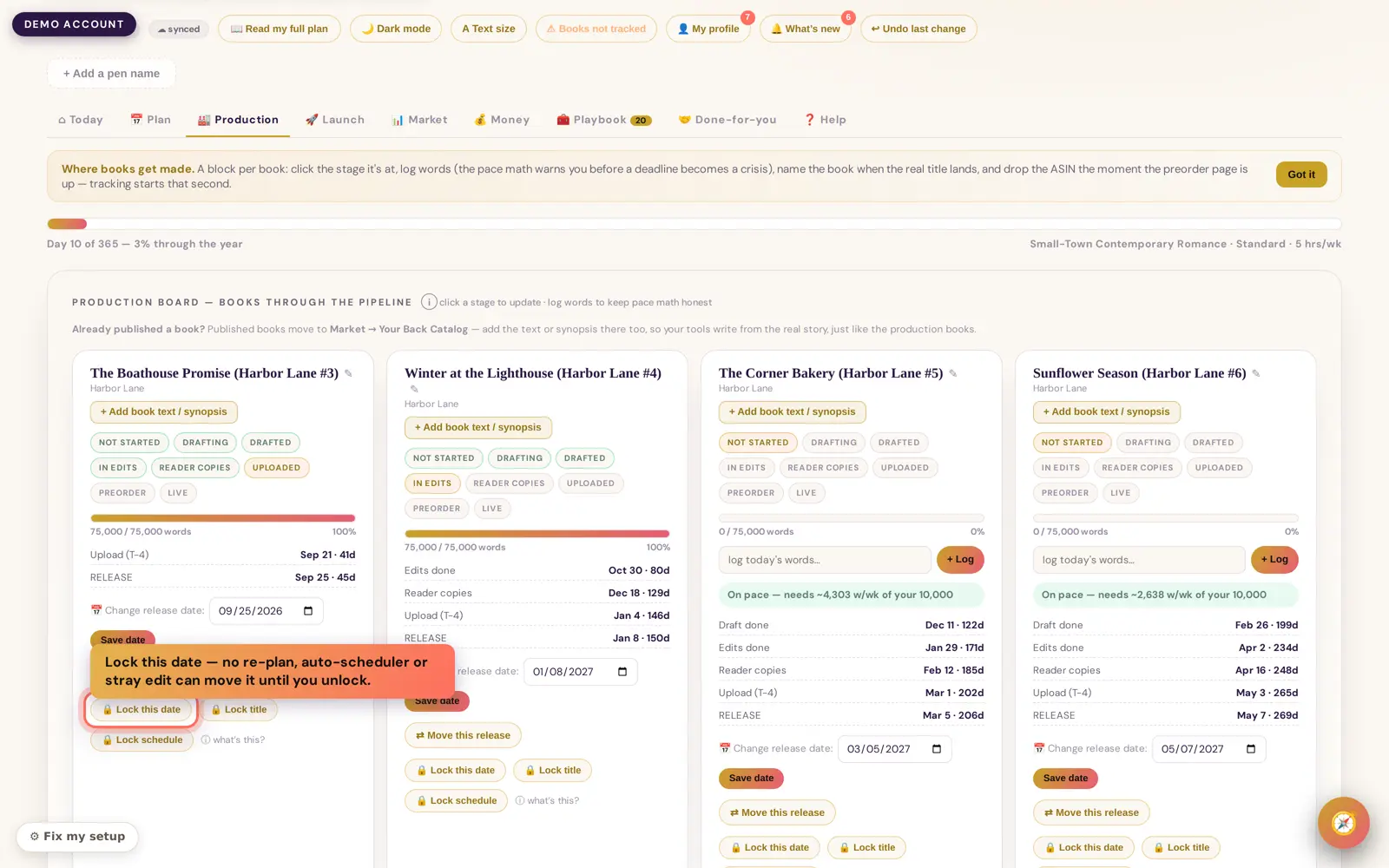
Lock this date lives on every book on the Production board (demo account shown)
Can I protect a book’s title, its schedule, or a single task?
Yes. Alongside Lock this date you’ll see Lock title (stops renames) and Lock schedule (holds your draft/edits/upload deadlines through a re-plan). And every task on your calendar has a small beside it — click it to pin that task so a rebuild can’t drop it.
Where do I see my real sales?
The Money tab. Connect once with the one-click Perfect Year — KDP Sales Sync browser extension (Chrome, Edge, Brave, Arc, Opera, Firefox) or the Sync my KDP bookmark on Safari. Your real units, page reads and royalties then sync automatically every hour. No password is ever shared.
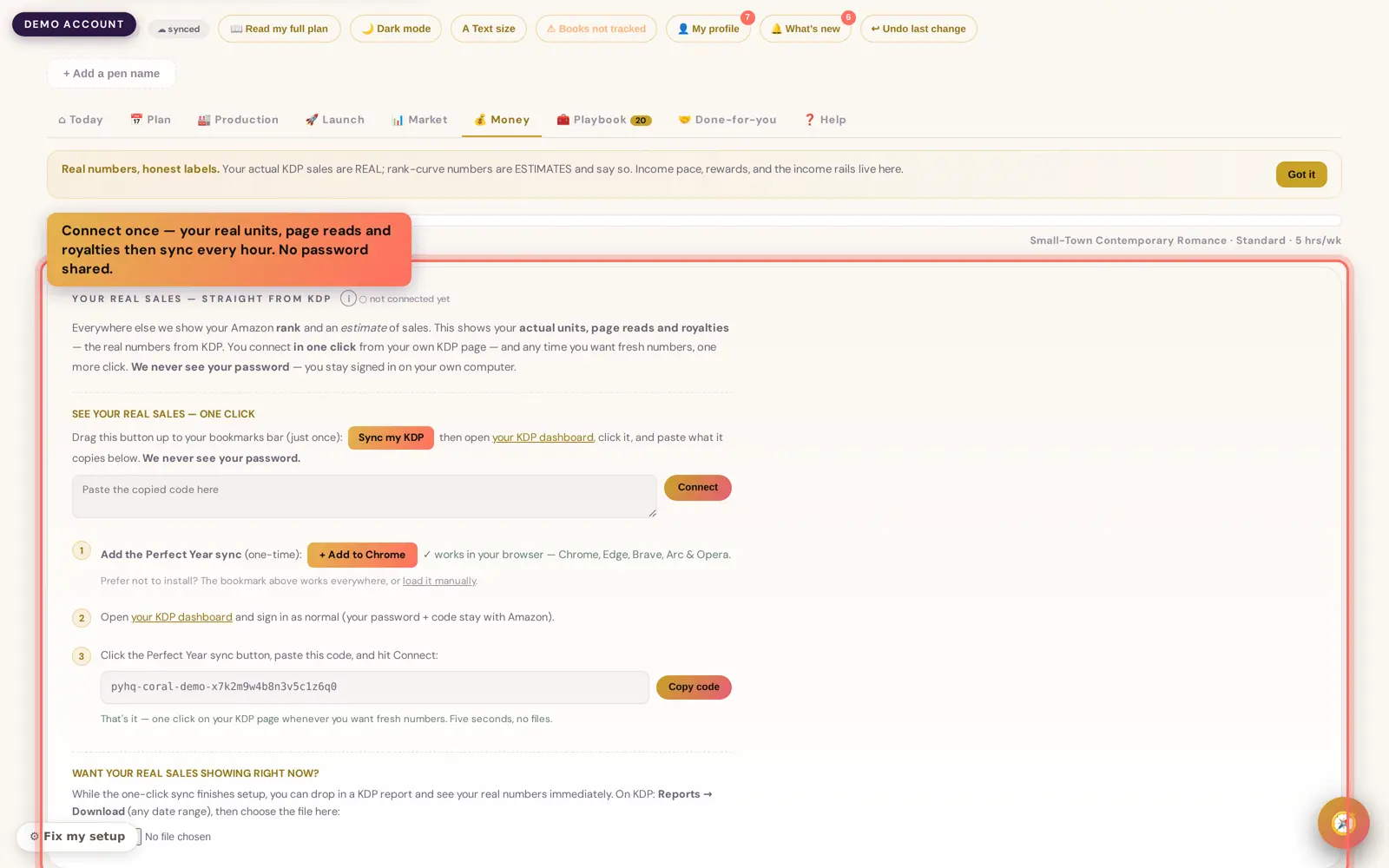
The Money tab — connect once and hourly sync takes over (demo account shown)
What should I do first if I’m brand new?
In order: (1) confirm your books, (2) connect your real KDP sales, (3) set up your reader magnet + landing page, (4) switch on Swap Admin by adding Perfect Year as an assistant inside Bookclicker (Account → Profile → Manage Virtual Assistants → Add Assistant), (5) open Demand Radar and press one Autopilot play before each release. The full first week is laid out here →
I got an email asking me to confirm my books are mine — what is that?
When Perfect Year updates a book’s title or release date on your dashboard, we send a quick one-click check so you can confirm the change is right before your dashboard treats it as live backlist. It’s safe to click — it only flags that book as confirmed, nothing is charged, deleted, or shared. Not your book? Just ignore the email — nothing changes unless you click. If you open the link again after you’ve already confirmed, the page just says “All confirmed ✓” — nothing more to do. If the link itself looks a little damaged (its book details didn’t come through cleanly), the page says so and offers a fresh link, or you can grab one any time from perfectyearhq.com/recover — or just reply to your email and we’ll sort it out. No harm done either way.
What’s the 28-day ring?
It’s your reminder to feed the Amazon algorithm roughly every 28 days with something new — a release, a box set, a translation or audio. Keep it green; going much past ~45 days without a release is the drop-off cliff. The ring lives on your Production tab.
Is everything I change reversible?
Yes — every edit is snapshotted, so your plan has a version history you can restore from. Locking and unlocking are just as safe.
A book shows as “preorder” with no rank — why?
When Amazon hasn’t confirmed a publication date yet, we default to preorder. Real rank and sales appear once the daily scrape confirms the book is live. Nothing is wrong — it resolves on its own.
One of my books shows a code (like B0CW18935J) instead of its title — why?
That code is the book’s Amazon ASIN, and we show it only while we can’t show a real title. Underneath it you’ll see a short line telling you exactly why — there are three cases:
“Looking up this book’s details…” — you’ve just added it and we’re reading the listing from Amazon. It usually names itself within about five minutes; nothing for you to do.
“This listing is no longer on Amazon” — the ASIN now returns nothing, so the book looks unpublished or delisted. Where our own records know what it used to be, we name it for you. If it’s a book you pulled down, click not mine to stop tracking it; if it should still be live, check the listing in KDP.
“…may not be one of yours” — our records say that ASIN belongs to a different author, so it was probably typed or pasted by mistake. Click not mine to remove it and add the right one.
We never invent a title to fill the gap: if we can’t confirm what a book is, we tell you instead of guessing. You’ll find all of this on the Your books chip beside each pen name (it’s also in Fix my setup).
All my upcoming books show the same title — how do I fix it?
Open Fix my setup and rename each book on its own — give every “Book Title TBC” slot a distinct name. Renaming one book never renames the others (we fixed the old bug where it did, and gave any duplicates distinct names so nothing was lost). Your title then shows correctly everywhere on the dashboard.
I don’t see the Move arrows on my calendar — where are they?
Every upcoming launch has a Move control on its month (and a Change release date field on the book itself). Two reasons it might be hidden: the book is already live (a published book can’t be moved), or you’ve locked that launch — unlock it first and Move comes back.
How do I cancel my subscription?
In the Money tab, open Your plan & billing and choose to cancel — it stops at the end of your paid period. If you can’t find it or need help, email perfectyear@perfectyearhq.com with your account email.
Will I get a receipt?
Yes. When your Perfect Year subscription charges successfully, you get a Perfect-Year-branded receipt email — the plan you’re on, the amount and date in your actual billing currency, the last 4 digits of the card when available (it reads “on file” when we can’t confirm them — that’s normal, not a sign anything went wrong), your invoice reference, and a link straight into your HQ billing page. It’s in addition to Stripe’s own receipt. Topping up your BookAdPack ad-pack credits gets a similar receipt: credits added, what you paid, your new balance, and a link to your wallet in HQ — that wallet belongs to BookAdPack (the same one bookadpack.com draws from); Perfect Year is showing it to you, not billing you separately for it.
How do I unsubscribe from Perfect Year emails?
Every email we send has a single “Unsubscribe or manage emails” link in the footer. Click it, then confirm on the page that opens — a real confirm step, not instant, so a stray click (or an email scanner) never unsubscribes you by mistake. This only stops emails; it does not cancel your Perfect Year subscription, which is a separate thing (see the question above).
How do I add another pen name?
Fix my setup → Add a pen. Its own plan, calendar and production board are built for it, and your Portfolio scorecard starts grading it alongside the others.
How do I block a holiday or days off?
On the Plan tab, scroll to Rest & personal time and add the dates — a rest week, a holiday, or a busy stretch. Your plan protects that time and schedules launches and deadlines around it.
I sell on Apple, Kobo or my own store too — can I add those sales?
Yes. In the Money tab use Connect your other stores to bring in wide sales, so your income picture is the whole business, not just KDP.
What’s in the Book Lab?
Eight research tools with no lookup caps: Find Keywords, Who Ranks, Category Explorer, Author Spy, Book Tracker, Reverse-ASIN, Income Goal Planner and Description Formatter. Every result has a one-click CSV download. It’s on the Market tab.
Where do I change my logo and colours?
Open the Loop tab and scroll to Your setup → Your look. Upload a logo (or paste a link), pick your five brand colours, and watch the live preview recolour as you go. In a hurry? Tap Import my look from my website and we’ll suggest them for you to approve — nothing saves until you press Save.
How do I set my free book (lead magnet)?
In Your setup → Free books & swaps, your free books appear automatically from your connected BookFunnel. Tap the one you’d like us to feature as your lead magnet — that’s it. You don’t type anything in.
Do I enter my swap partners or swap rules?
No. Your swaps come straight from your connected Bookclicker, and your free books from BookFunnel. There’s nothing to fill in on the setup page — we read them from your accounts and handle it from there.
One thing does need you. Bookclicker asks the seller to confirm every promo actually went out. Where we can see the send, we confirm it for you. Where we can’t — because you sent from your own email tool — press I sent this on your Swaps you owe card and paste the web link to the email. That is the only swap job that stays yours.
Is my setup page public? Will readers see it?
No. Nothing on Your setup is public — it’s private to you. It’s only what we copy from when we draft your emails and posts. Nothing goes out until you approve it.
Can I have a different look for each of my pen names?
Yes. Each pen name has its own separate setup — its own logo, colours, voice and books. Use the pen picker at the top of Your setup to switch between them; whatever you’re editing only ever affects the pen you’ve selected.
How do I teach the drafts to sound like me?
In Your setup → Your voice, paste a few paragraphs you’ve written that sound like you — an old newsletter, a favourite scene. We learn from it so everything we draft is in your voice. We never publish this; it’s only ours to learn from.
How do I set my sender name and email (from-address)?
In Your setup, each pen name has a sender name and a sender email. The sender name is how your letter is signed. The sender email is the from-address used when you choose to send through your connected email tool (MailerLite, Kit or Mailchimp) — so use an address you’ve verified with that tool, because each one will only send from a verified address. Each pen name has its own, and you can change them any time. You always approve each issue first — nothing goes out on its own. Once a pen is fully set up (a verified sender email and a chosen reader list), Loop can send each issue you approve straight to that list for you; otherwise you send it yourself or copy the HTML into your mailer.
Which reader list do my letters go to?
In Your setup, once a pen name is connected to MailerLite and set to send there, you choose which reader list (in MailerLite these are called groups) your letters go to. These are the lists in your own MailerLite account — pick the one your readers are on, and that’s exactly where your letter goes. We pre-suggest the list you chose when you connected, so usually you just confirm it; you can choose a different one any time, and each pen name has its own. Nothing sends until you approve the issue. If your pen just makes the HTML for you to send yourself, you don’t need to set a reader list.
My issue is ready but I send it myself — how do I get the finished letter?
If you send your own newsletter instead of having us send it for you, open your HQ's Loop tab. Once an issue is approved and finished, its card says Your letter is ready with two buttons: Copy the finished letter and Download the letter.
Copy the finished letter puts the whole letter — including any swap promos we lined up for you — on your clipboard, ready to paste straight into your own mailer's editor. Download the letter saves it as an HTML file instead, if your mailer wants an upload.
Either way, nothing sends until you send it. We only prepare the letter; pressing send in your own mailer is the step that stays yours.
Can my assistant or VA help with my dashboard?
Yes. From Team & assistants (next to Help in your HQ), you create her a seat — editor (can approve, reject and reschedule within her scope) or viewer (read-only) — and, optionally, limit it to specific pen names. That creates a private link, just for her.
Copy it and send it to her yourself — text, Slack, WhatsApp, whatever — we never email it for you. You can revoke any seat instantly, any time, from the same tab. Seats are free while this feature is new.
This is separate from the Bookclicker “Manage Virtual Assistants” grant (see above) — that grant only lets Perfect Year automate your swap-booking on Bookclicker’s own side. It does not give a person access to your Perfect Year dashboard. A Team & assistants seat is the only way to give someone else access to your HQ, and it never requires sharing your own login or password.
What can an assistant see?
Depends on the role you gave her seat. An editor seat can see and act on everything in her scope — approve, reject and reschedule items in your Loop queue — but never on pens outside the seat’s scope if you limited it. A viewer seat can see everything in her scope but can’t change anything — she gets a plain read-only banner so it’s clear at a glance.
Neither role ever sees your Money tab, billing, or the Team & assistants tab itself — those stay owner-only no matter what. Your sales, royalties, KDP units and page reads, ad spend and profit figures stay owner-only everywhere in HQ, not just behind the Money tab: where you see your royalty ring, income goal or Money at a glance on Today, an assistant sees a plain line saying those figures are visible to the account owner only. Two owner-only cards, Let us quote from this book and Your books, kept safe, show her an honest note instead of their controls. Either role can also see your Market intelligence (category power, demand radar, keywords), swap status and booked swaps, the query tracker, free-book signup numbers and promo suggestions, all limited to her own pen names the same way as everything else, so she never sees another pen's name or data. A few actions always stay yours alone whichever role she has: starting a new book build, uploading a manuscript, logging or updating an agent query, managing your Magnet Studio, confirming a swap and billing. Where she can't do something, she sees an honest note or the button simply isn't there. Revoke a seat any time and that link stops working immediately; it never says whether a link was ever real, so a bad guess and a genuinely revoked seat look identical from the outside — that’s deliberate, not a bug.
Can the Author Loop post to my social media?
Not yet. Social posting is coming soon. Today the Author Loop writes and sends your reader newsletter (always with your yes first). When social posting switches on, you'll connect your accounts from the Loop tab, we'll write a post for each of your networks from each approved newsletter, and every post will wait for your yes before it goes anywhere. Nothing posts to your social media automatically, and we'll tell you before it switches on.
Facebook found more than one Page when I tried to connect — what do I pick?
Pick the Page you want this pen's posts to go out under once social posting switches on — usually the Page for the pen name shown next to it. To change it later, tap Disconnect on that row in the Loop tab and connect again. Nothing posts anywhere until we switch posting on.
Where do the pictures on my social posts come from?
Once social posting switches on, each post’s picture will come from your BookAdPack ad pack if you have one — a cover, hook or tagline image, sized to fit whichever network the post is going to (square-ish for Instagram, wider for Facebook and LinkedIn, and so on). If you don’t have a BookAdPack pack, your book’s own cover is used instead, so a post almost never goes out without a picture. You’ll see the picture on each post in your Loop inbox before you approve it. Posting itself is still coming soon.
Do I need a BookAdPack pack for my social posts?
No. If you don’t have a BookAdPack pack, your posts use your book’s own cover instead — nothing is held up and no post goes out without a picture. Having a BookAdPack pack just gives your posts more images to draw from (different hooks, taglines and mood art) instead of the same cover every time, so they can look a bit stronger and more varied — but it’s entirely optional. Posting itself is still coming soon.
Why does Facebook say ‘AI info’ or ‘AI content’ on my post?
That’s Meta’s own label, not ours. Facebook and Instagram require a disclosure label on images made with AI, and BookAdPack images qualify, so Meta adds it automatically — it’s required and completely normal, not a sign anything went wrong with your post. It doesn’t hurt how far your post reaches, as far as we know — it’s simply Meta being upfront with readers about how the image was made.
What do I need for Instagram?
A Professional Instagram account — Business or Creator, not a personal one — linked to your Facebook Page. That’s Instagram’s own requirement for any app posting on your behalf, ours included, not something Perfect Year adds. Every Instagram post also needs a real picture before it can be approved, which is why we always try to have one ready: your BookAdPack pack image, or your book cover if you don’t have a pack. On the rare occasion neither is available, that one post will wait — with a plain note instead of an Approve button — until a picture is; it never goes out blank, and none of your other posts are affected. You can’t yet choose or swap which picture is used — it’s chosen for you automatically.
Can I post to X (Twitter)?
Not yet. X isn’t available to connect for now, so its row in the Loop tab says ‘Not available yet’ instead of showing a Connect button. We’ll let you know if that changes.
How do I add lots of books at once?
On the My pen tab, next to + Add a book, click + Add several books. Paste one title per line (up to about 200) and press Add. You can also add a release date, target word count or series on the same line, like this: Title | 2027-03-01 | 70000 | Series name. Everything after the title is optional. You see a preview first: titles already on that pen are flagged and skipped, so you never get a duplicate. At the end you get a plain summary of what was added, skipped or failed, with a Retry button. The book boxes further down My pen are for renaming or correcting a book you already have, and they now say so.
I release more than once a month. Why did my Plan only show one of them?
That's fixed. Your Plan tab and your Calendar now show every release on your books, even several in the same month or on the same day, matching your Production board exactly. Nothing in your saved plan changed; this only fixes how it's shown. If an older plan note mentions a book that has since been removed or renamed, it's now greyed out with a 'may be outdated' flag.
Why do I see a 'launches are close together' warning?
It's a gentle heads-up when two launches on the SAME pen name land within 14 days of each other, because they compete for the same readers' attention. Different pen names are never compared against each other — a launch on one pen and a launch on another, even the same week, never triggers this. It never moves or blocks anything: you choose your dates. All close pairs now sit in one collapsed card; open it to see each pair, or press Dismiss to hide it until a new close pair appears.
Change things yourself
Everything you can change on your own — most of it lives in Fix my setup (header) or on the book itself. Every change is reversible.
Add a book or a pen
Fix my setup lets you add a new book (title, series, date) to any pen, and add a whole new pen name.
Rename each book
Several books called “Book Title TBC”? Rename each one individually in Fix my setup — renaming one never touches the others.
Move a release date
Click Move on the launch’s month, or use Change release date on the book. We re-fit the plan around it. (Unlock first if it’s locked.)
Edit your goal
Set your income target and target month, plus a goal for each pen, in Fix my setup.
Block days off
On the Plan tab, add rest weeks, holidays or busy stretches under Rest & personal time — your plan protects them and works around them.
Upload your manuscript
Add your real book text or synopsis (Production & Market) so the tools write from your actual story, not a generic one.
Connect KDP & add an ASIN
Connect KDP once (Money tab) for hourly real sales; paste a book’s ASIN on the Production board to start rank/sales tracking.
Billing & cancel
Manage or cancel your subscription under Your plan & billing in the Money tab; anything the page can’t do, perfectyear@perfectyearhq.com will.
What’s new Latest
The most recent additions to your HQ. Your dashboard also shows these on the bell, and you can ask the Strategist “what’s new?” any time.
Lock It Down
Lock a launch date, a book title, its schedule, or any calendar task so nothing — a re-plan, the auto-scheduler, or a stray edit — can quietly change it. Jump to how it works →
Change any date on the book
Every book has a “Change release date” field on the Production board — pick a new date and we re-fit the rest of your plan around it.
Add a book yourself
In Fix my setup you can add a new book to any pen — title, series and release date — and it lands on your Production board straight away.
Edit your goal
Set your income target and target month, plus a goal for each pen name, right inside Fix my setup.
Lock It Down
The trust switch. Decide something once — a launch date, a title, a schedule, a task — and the plan protects it. Editing anything else can never quietly undo it. Unlock any time.
How to use it
- Open the Production board, or find the launch’s month on your Plan calendar.
- Click Lock this date (or Lock title / Lock schedule) on the launch — or the small next to any calendar task.
- The item turns gold and shows “locked”. To change it later, click Unlock first.
Why it helps: it answers the worry every author has in their first weeks — “if I edit something, I’ll break something else.” Now you can’t. Lock what you’re sure of, and edit the rest freely.
Every tab, in one line
The top bar of your HQ, left to right — what each screen is for and the one thing to do there.
Today
Your daily deck — alerts, who needs you this week, the next-launch countdown, and real money at a glance.
Open it every MondayPlan
The year at a glance: all 12 months, colour-coded to your energy seasons (gold = a release, green = protected rest). Move or lock any launch here.
Click Move on a monthProduction
The production board — click a book’s stage as it advances, log your words, and paste an ASIN to start preorder tracking. The 28-day feed ring lives here.
Keep the ring greenLaunch
Mission Control — the 30-day launch countdown and the phase checklist, each step with a one-press Power Play. Shelfsmith checks your blurb, and the From this plan row takes you straight from a checklist task to the tool that does it.
Files due 4 days before releaseMarket
Live market research, refreshed every morning: Demand Radar (what to write next), trending tropes, your readers’ own words, comps, the avoid-list, best categories, and the Book Lab.
Start with Demand RadarMoney
Your real KDP sales — units, page reads (KENP) and royalties, synced automatically every hour. Plus profit & loss, reviews, and income pace vs your goal.
Connect once, then it’s automaticPlaybook
20 one-press Autopilot plays that produce finished work from your own plan — a launch timeline, a month of newsletters, 30 TikToks, a series outline, blurbs, and more.
Aim with the selector, then pressDone-for-you
Your swap admin — we pull your Bookclicker bookings, hand you a ready-to-paste swap sheet, chase the partners who forgot, and cap swaps so you never over-swap. Add us as an assistant on Bookclicker and we post the confirmations it asks you for too.
Switch on in BookclickerPortfolio
A scorecard grading every pen name — shown when you run more than one pen.
Multi-pen authorsHelp & Ask the Strategist
A searchable list of every tool, and a working-author chat (bottom-right) grounded in your live numbers. Ask it anything — “how do I use X?”, “what’s new?”
Bottom-right, any timeThe big tools, explained
The features authors reach for most — what they do and why they matter.
Hook Lab
Hook Lab lives on the TropeSmith site, not inside your Perfect Year HQ. You will find it at tropesmith.com/hook-lab. Paste one BookTok caption or blurb hook and a panel of romance-reader personas tells you who would stop scrolling, who would save it, and what would make them pass.
It is free to use, and the point of it is to test a hook while it is still cheap to change — before you post.
What is the Lane pulse card on my Today screen?
The Lane pulse card shows the top reader asks in each of your lanes this month — real signal counts from PlotProse's own reader-demand corpus, refreshed monthly. It's directional market context: ask your Strategist what the numbers mean for your plan. If there's no fresh read for your lane, the card doesn't appear — we never invent numbers.
Demand Radar
The rising reader wants in your lane, crossed with how few books already serve them — a high score means readers are asking and almost nobody’s writing it. One click turns the top gap into a full series map and Book 1 outline.
Book Lab
Live market research with no lookup caps: find keywords from Amazon’s autocomplete, see who ranks for a term (with a rankability verdict), spy any author’s catalogue, track a book’s rank, and reverse-ASIN every keyword a book ranks for. Every result downloads as CSV.
Marketing Autopilot
20 plays that hand back finished work — a 22-day launch timeline, a whole month of newsletters, 30 TikTok scripts, blurbs, a box-set plan, a read-through fix, and Amazon Ads campaigns with an honest “are you ready for ads?” audit that will tell you no and give a free alternative.
Real KDP Sales
Your KDP units, page reads and royalties, synced in automatically every hour — pulled straight from Amazon, not a sales-rank estimate. Connect once with the one-click browser extension (or the bookmark on Safari). No password is ever shared.
Swap Admin (done for you)
Every promo week we pull your Bookclicker swap bookings and hand you a ready-to-paste swap sheet — every link, every cover — plus a chase list for partners who forgot theirs, and a cap so you never burn your list.
Once you have added us as an assistant on Bookclicker we also accept and book the free swaps we line up for you, and post the confirmation that each promo went out — the confirmation Bookclicker asks every seller for. A paid slot always waits for your yes first, and money never runs through us.
We write your swap emails; you press send. Where we can’t see that a send happened, press I sent this on your Swaps you owe card and paste the web link to the email. Included in your Perfect Year subscription. No add-on, no extra fee.
Market Pulse
Your lane decoded live: typical price, KU share, titles in lane, trending tropes with up/down movement, and real reader requests flagged underserved vs common. An early signal shows tropes rising in fanfiction before the paid market catches up.
Every tool in the box
The complete toolkit — every tool on your dashboard, tab by tab: what it does, and how to use it. This is the same guide as the Help tab inside your HQ, so nothing here is missing from the box.
Today
Next up
The very next dated thing for each pen name — deadline, launch phase, release, promo send, Loop newsletter or your own note — and how many days away it is.
How to use it: Open the Today tab; it sits just under your daily deck. Tap 'See the whole calendar →' to jump to the Plan tab's calendar.
Your daily deck
The one screen to open every Monday: what's on fire, who needs you this week, your next-launch countdown, and real money at a glance.
How to use it: Read the alert row first — click any alert to jump to the tab that fixes it. Tick the 'Who needs you this week' tasks. Everything else lives in the other tabs.
Who needs you this week
Your pen names ranked by days-to-launch, with this week's actual tasks.
How to use it: Tick a task when it's done — ticks save and follow you across devices. The pen inside 30 days of a launch owns your marketing hours.
Money at a glance
Your real KDP units, page reads and royalty for the period, plus a rank-curve estimate clearly labelled ESTIMATE.
How to use it: Glance at it, then click 'details →' for the Money tab. Connect KDP once (Money tab) to make these your true numbers.
Wins Log & Rewards
Somewhere to bank each win as it happens — a book out, a rank hit, a list milestone — and the rewards you've put on the table for this week.
How to use it: Log the win the day it happens, while it still feels like one. A publishing year is long, and the record of what you've already pulled off is what carries you through the flat months.
Your 20 tools
A shortcut into the Playbook — the 20 one-press plays that build finished work from your books.
How to use it: Click 'open the Playbook →' to see and press any play.
Plan
Your calendar
Every day in one place: releases, deadlines, launch phases, quarterly reviews, promo newsletter send dates, swap confirmations, preorders, your Loop newsletters and your own notes — colour-coded by pen name, with a 'Next up' line at the top, filter chips, and amber heads-up days when two sends hit the same readers on one day or two pen names release in the same week.
How to use it: Plan tab → Your calendar. Use ‹ › to move months, tap the filter chips to show only some pen names or item types, tap any day to open it (a day explains itself at the top), tap '+ Add a note for this day' to pin your own item, and tap 'open →' on an item to jump to the tab that owns it.
The year at a glance
Your whole 12-month plan, one card per month, colour-coded to your energy seasons — gold = a release, green = protected rest.
How to use it: Glance every Monday to see what the month is FOR (drafting, launching or resting). Press a month's ▶ button to have that beat done for you.
Move a release
Reschedule a release to a new month without breaking the plan.
How to use it: Click Move on a release month (also on the Production board), pick the new date — it saves automatically and re-flows the surrounding plan.
Energy seasons
Your annual creative-energy cycle: stacking, flux, drafting valley, deep-work, launch season, and plan-don't-write December.
How to use it: Read the colours — write hard in deep-work months, launch in launch months, rest in the green weeks. The plan protects rest on purpose.
Production
Production board
Every book from blank page to LIVE, with dated draft / edit / upload deadlines and word-count pace math.
How to use it: Click the stage when you move forward (drafting → edits → uploaded → preorder → LIVE) and log your words after a session — the pace warning fires months early if a deadline stops matching reality.
Preorder tracking
Starts watching rank, sales and reviews the day your preorder page goes up — the numbers that shape how Amazon treats your launch.
How to use it: When your preorder is live, paste the book's ASIN into the board. Tracking begins that second instead of waiting for release day.
Launch
Mission Control
A 30-day countdown to your next release — days, weeks and days-until-upload (KDP files are due 4 days before release day).
How to use it: Watch the phase bar — BUILD, HEAT, COUNTDOWN, BLITZ. The checklist beside it always shows the current phase's tasks.
Launch checklist
Every phase of your launch, start to finish — pre-flight, build, heat, countdown, blitz — with the one you're actually in marked YOU ARE HERE. Every task on every phase is on the page; nothing is folded away.
How to use it: Tick things off as you go (ticks save across devices). Each step carries a ▶ Power Play that will DO that step for you.
From this plan
The row under Mission Control and the checklist that takes you from a task to the tool that does it, so you never go hunting.
Make my mood & trope graphics opens BookAdPack in a new tab — it reads your book and builds the ad images, launch graphics and ad copy from it. BookAdPack is a separate product that you pay for separately: you sign in there and buy its credits there, and your Perfect Year subscription does not cover it.
Write my release newsletter goes wherever your newsletter really lives — your Author Loop inbox if you have the Loop, the newsletters we have already written for you if we have, or it writes this month's batch for you right there. You copy it into your own mailer and press send; we never send anything under your name.
Line up my release-week swaps takes you to your swaps — anything waiting on your OK plus the admin we handle for you. Swap admin is already included in your Perfect Year subscription: no add-on, no extra fee.
Shelfsmith
Checks your blurb against Amazon's real shelving behaviour and tells you where the book will actually land — before you upload.
How to use it: Paste your blurb and run it (nothing is saved). Fix any drift into the wrong lane before you publish.
Market
Demand Radar
The flagship: rising reader wants in your lane crossed with how few books serve them — a high score means readers are asking and almost nobody's writing it.
How to use it: Read the top rows, then press 'Outline this book now' to turn the biggest gap into a full series map + Book 1 beat sheet.
Trope Demand Radar
Which tropes in your lane are heating up and which are cooling.
How to use it: Lean into the rising list; don't pour effort into the cooling ones.
Reader Words
The exact phrases and bigrams your readers use in their reviews.
How to use it: Lift this language straight into your blurb, ads and keywords so your listing sounds like your readers.
Comps & swap partners
Real also-bought neighbours in your subgenre — the authors you sit beside.
How to use it: Use them as comps in ads and as swap targets; the swap play helps you reach out.
Avoid-list
The most common complaints and DNF ('did not finish') reasons that make readers quit books in your lane.
How to use it: Read it before you draft and again before you publish — treat each item as a thing to NOT do, so your book doesn't earn the same one-star reviews.
Blurb Intelligence
How the #1 books in your lane hook readers — the patterns in the highest-ranked blurbs.
How to use it: Model your own blurb on the patterns shown; pair it with Reader Words for the phrasing.
Best categories for your book
The Amazon Kindle categories your books already sit in, and how well they fit.
How to use it: Use it to spot a better-fitting or less-crowded category to request from KDP.
Category Ladder
Who holds #1 in your category TODAY and the daily sales it takes to hold each rank.
How to use it: Read it to size the target — how many sales/day you'd need to reach a given rank in your lane.
Validate your genre
Confirms the lane we've read for each pen name — the subgenre every other tool aims at. Everything downstream (Demand Radar, comps, categories, the Avoid-list) is only as right as this is.
How to use it: Check it when a pen is new, or any time the market advice feels aimed at the wrong shelf — if the lane looks off, fix it here and the rest re-aims itself.
BookTok early signals
Hashtags gaining (or losing) plays fastest on BookTok in lanes next to yours — the market weeks before rank shows it.
How to use it: Treat a fast riser as an early buy/marketing signal. (This reads TikTok; the AO3 signal reads fanfiction — two different crowds.)
Market Pulse
Your lane decoded live: typical price, KU share, trending tropes with up/down movement, and real reader requests flagged underserved vs common — plus AO3 tropes rising in fanfiction before the paid market catches up.
How to use it: Read the underserved asks as gold — write one and own it. Nothing to set up.
The Book Lab
Eight live research tools on our own engine, no lookup caps: Find keywords, Who ranks, Reverse-ASIN, Category explorer, Author spy, Book tracker, Income-goal planner, and a Description formatter.
How to use it: Type into any of the eight boxes and press its button. Every result has a one-click CSV download. Volume is an honest 0–100 index, never a fake 'searches/month'.
Money
Your real KDP sales
Your KDP units, page reads (KENP) and royalties, synced automatically every hour — pulled straight from Amazon, not a rank estimate.
How to use it: Connect once with the one-click 'KDP Sales Sync' extension (or the bookmark on Safari); no password is shared. If it says 'reconnect', redo the one-click connect — nothing is lost.
Series sell-through & reader value
Real units, page-reads and royalties grouped into series from your titles, with book-to-book read-through and earnings per paid unit.
How to use it: See where readers leak between books; use 'earned per paid unit' as your break-even ad spend per reader. KU borrow counts aren't available, so we never guess them.
Profit & Loss
Your net by month and currency — royalties in, expenses out.
How to use it: Press 'add expense' to log a cost (ads, editing, covers) and the P&L updates. Currencies are kept separate — we never add £ to $.
Reviews & price watch
A daily check of each book's review count and price.
How to use it: Glance after launches and promos to catch a price slip or a review stall early.
Solo ads → sales lift
Each solo ad you log, measured against your REAL KDP sales in the days after the blast vs your baseline before it.
How to use it: Log a solo ad and the panel shows which vendors actually moved copies. Sample rows are clearly labelled and never counted as real bookings.
Your plan & billing
See your Perfect Year plan and renewal date, and cancel or resume your subscription yourself — no email needed.
How to use it: On the Money tab, 'Your plan & billing' shows your plan and next renewal. Click Cancel subscription to stop it renewing — you keep full access until the end of the period you've already paid for, and can click Keep my subscription any time before then to resume.
Connect your other stores (Apple/Kobo/Google/D2D/ACX)
Bring your non-Amazon sales into HQ so your totals and promo-ROI reflect every store you sell in, not just KDP.
How to use it: On the Money tab find 'Connect your other stores'. Download your sales/royalty report from the store you're logged into (e.g. Apple Books Analytics, Kobo Writing Life export, Google Play Reports, Draft2Digital CSV, ACX sales), pick the store, and drop the file. We read it in your browser and save just the numbers — no password shared. Re-drop any time to refresh; nothing duplicates.
Which promos actually moved copies
Every promo swap you ran, measured against your REAL KDP sales — units and royalty in the days after the promo vs your own baseline before it, matched to that book's ASIN.
How to use it: Nothing to set up — read it on the Money tab. Promos with the biggest lift show which lists and swap types actually sell for you; a promo we can't yet isolate (no Amazon link, or sales not synced yet) says so plainly. Connect KDP once so the numbers are your real sales.
Universal book link
One link that sends every reader to the right Amazon store for their country.
How to use it: Create a link for a book and use it everywhere — newsletters, socials, swaps — so no reader lands on the wrong storefront.
Income pace
Where your earnings sit against the income goal in your plan.
How to use it: Read it as direction, not a bank balance — it uses estimated sales. Your KDP dashboard is the truth about money.
Playbook
The 20 autopilot plays
Twenty one-press tools that build finished work from your own books and dates — launch timelines, a month of newsletters, 30 TikToks, series maps, blurbs, box sets, welcome sequences, Amazon ads and more.
How to use it: Optionally aim the plays at one specific book (the selector), then press any play — it takes a minute or two. Income-rail plays are capped at ONE per 30 days on purpose. Each play also lives on the tab where you'd reach for it.
Character name ideas
Real first names used for lead characters in top-selling books in your lane.
How to use it: Use them when a character needs a name that fits reader expectations for the genre.
Shelfsmith (also here)
The blurb-vs-Amazon-shelf validator, reachable from the Playbook too.
How to use it: Opens on the Launch tab — paste your blurb to see where Amazon will shelve the book before you upload.
The Autopilot plays — the full list
Every one-press play in your Playbook. Aim it with the selector (pen, book, month), press it, and it produces the finished asset from your own plan and books:
Sequence my series launch Build my welcome sequence Multiply this month's content Fix my read-through Plan my box set Should I translate? Write my series blurbs Fix my weakest book (backlist booster) Build my launch timeline Outline my next book Build my Amazon ads Am I ready for ads? Batch this month's newsletters 30 days of TikToks Book my promo ladder Who should I swap with? Plan a Kickstarter Plan a week-early direct-store release Set up my Patreon Set up my Amazon ads Outline this book now
Done-for-you
Bookclicker — done for you
Your newsletter lists and their real stats, plus the on-time confirmations Bookclicker is waiting on. Free swaps are booked for you, and confirmed for you wherever we can see the send; where the email went out from your own tool, one press of I sent this on your Swaps you owe card lets us confirm it. Paid slots always wait for your one tap.
How to use it: Switch it on by granting the 'Perfect Year' assistant inside Bookclicker — Account → Profile → Manage Virtual Assistants → Add Assistant, type Perfect, then click Perfect Year. It saves the instant you click: there is no Save button and no confirmation message. No password is ever shared, and removing the access takes one click. Approve a paid slot with 'Approve & book this for me' — we book it; you never leave HQ.
Newsletter blocks (Copy HTML)
A paste-ready newsletter block for each of your send dates, with every promo you're featuring laid out for you.
How to use it: Press 'Copy HTML' on a date and paste it straight into any mailer — MailerLite, Mailchimp, anything.
What your lists accept
The swap rules the engine reads from each of your Bookclicker list names — genre, heat, KU and more.
How to use it: Check it before booking so you never accept a swap your list would reject.
Delivery-link health
Every BookFunnel and Bookclicker link tied to your promos, checked for you — green = healthy.
How to use it: Glance before a promo goes out and fix any link that isn't green, so readers don't hit a dead download.
Swap sheets
Your promos, their share dates and the reader link ready to paste — pulled and kept current for you.
How to use it: Grant us assistant access inside Bookclicker — Account → Profile → Manage Virtual Assistants → Add Assistant — then use the ready sheet on each share date. Bookclicker asks the seller to confirm every promo went out; if we can’t see the send because you sent it from your own email tool, press I sent this on your Swaps you owe card and hand us the web link to that email — with your assistant access in place we post the confirmation for you.
Promo list directory
Every promo/swap list we've seen with its real rules — who it welcomes, what it excludes (LGBTQ+, RH, PNR, clean, etc.), frequency caps, cover style and link timing — so you match your book to lists that will actually take it.
How to use it: On the Done-for-you tab open Promo list directory. Tag what your book IS (steamy, dark, RH, etc.) and any list that would reject it is flagged; tick 'compatible only' to hide those. Search by name, filter by heat, and click 'exact rules' to read the list's own wording before you pitch.
Report a swap that went wrong
If a swap partner didn't send, sent the wrong audience, or the promo didn't match what your list was promised, flag it and our team reviews it and follows up — you never chase anyone. It flags the swap for review; it isn't an automatic refund (swaps are reciprocal).
How to use it: On the Done-for-you tab open ‘A swap didn't go right?’, pick the swap (or type it), choose what went wrong, add a note and press Send to our team. Your flags show their status right below — Reviewing, Resolved or Closed.
Not the same as proving your own send. This form is for a partner who let you down. If it is your promo you cannot prove, use I sent this on your Swaps you owe card instead.
Co-author reach badge
Shows the extra shared reach when a list is co-run with another author.
How to use it: Informational — it tells you the true audience size behind a shared list.
Done for you — this week
A plain-English log of everything the engine did while you wrote — swaps booked, sheets pulled, newsletters written — with each newsletter shown in full.
How to use it: Read it to see the week's work; copy any newsletter into your mailer.
Loop — your newsletter, written for you
Your newsletter, written for you
We draft each reader newsletter in your voice, from your own books, swaps and free downloads. It lands in your Loop inbox for your yes — nothing ever sends without it.
How to use it: It's free: switch it on from the Today screen. Then open the Loop tab, read the draft, tweak a word if you like, and tap Approve.
Your setup
The look, voice, sender name and reader list each pen name's drafts copy from. Private — readers never see it.
How to use it: Loop → Your setup. Pick the pen at the top, edit what you need, and Save. Each pen name has its own setup.
Your schedule
Shows when your next issue is drafted and when it goes out, in your own time zone — and lets you choose the day, time and rhythm (weekly, every two weeks, or monthly).
How to use it: Loop → Your setup → Your schedule → Pick your day and time → Save my schedule. Your new dates appear within a few minutes. Every-two-weeks also asks for the date of your first issue.
Newsletter on or off, per pen
Each pen name has its own newsletter switch (on by default). Off means nothing is drafted for that pen; the others carry on.
How to use it: Loop → Your setup → the newsletter switch for that pen. Flip it back on any time.
◈ Portfolio
Portfolio scorecard
Every pen name graded like a fund manager grades holdings — feed health, draft pace, launch readiness — on one screen.
How to use it: Only appears when you run more than one pen. Start here each week, then open the pen that needs you. (Capacity Guard flags when the plans together ask more than your hours allow.)
Everywhere in HQ
What's-new bell
The header bell that lists every improvement the moment it ships, with a red badge for anything you haven't seen.
How to use it: Click it to read what's new; fresh items open once automatically.
Ask the Strategist
A working-author chat (bottom-right) grounded in the method AND your live numbers — ask why a release sits where it does, which tool to use, or 'how do I use X?'.
How to use it: Click and type your question. It answers from the method and your real dashboard data; account/billing questions go to perfectyear@perfectyearhq.com.
ⓘ info icons
The small ⓘ on every card explains what it is, where its data comes from, and what it needs from you.
How to use it: Hover (or tap) the ⓘ on any card for an in-place explanation.
Read my full plan
Your whole year rendered as one readable page, generated fresh from the live plan.
How to use it: Click ' Read my full plan' in the header any time — it always reflects the current plan.
Still stuck?
Ask the Strategist. The chat at the bottom-right of your HQ knows your live numbers and every tool — ask it “how do I use X?” or “what’s new?” and it answers straight away.
Account or billing? Email perfectyear@perfectyearhq.com and a real person will sort it, same day where they can.